Showing posts with label Windows 8. Show all posts

Saturday, January 4, 2014

SOLVED: Firefox Sometimes Starts in Safe Mode

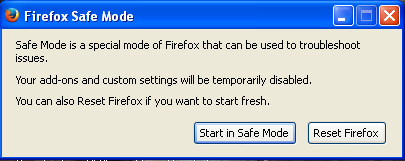
Occasionally when Firefox starts up, this screen shows up.


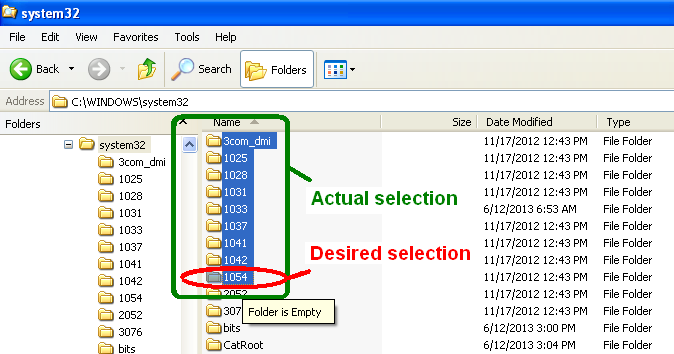
Another symptom of this problem is in Explorer. Open Explorer and attempt to select a file by clicking on the filename. All files above the file you are trying to select are also automatically highlighted. Only your selected file should be chosen


SOLUTION:
Most likely, your keyboard SHIFT key is sticky. Lift gently on the each SHIFT key and attempt to launch Firefox. If it starts normally, simply clean your keyboard, focusing on the SHIFT key you were lifting when it began behaving normally again.

 - BG & BB

Sunday, May 19, 2013

HOWTO: Remove Pushow or AdvertMen Adware From Windows Machines

The adware program known as "Pushow" or "AdvertMen" is easily removed from your Windows computer by deleting the files. Follow the instructions provided below. It only takes a moment to free yourself of the annoying pop-up ads and the underlying tracking and reporting. If you're comfortable with the Command Line, it's only three lines of typing!

NOTE:  The files you see in the screenshots are fake. We created them as examples, so the file sizes and parts of the names will definitely be different. If the filename starts with the word "pushow," remove it.

EASIEST METHOD
1. Make notes or open a different browser to this page.
2. Close Firefox.
3. Open Windows Explorer
3. Navigate to the system directory, in bold below.
         c:\windows\system32
4. Look for any files with a name beginning with pushow. You should see something like this.


5. Delete those files permanently or move them to your trash bin and then empty it.
6. That's it! You're done.


EASY METHOD
1. Make notes or open a different browser to this page.
2. Close Firefox.
3. Open a Command Prompt window.
4. Type the following commands.
          cd c:\windows\system32
          dir pushow*
          del pushow*
          dir pushow*
5. Your window should look very much like this.


6. That's it! You're done.

Sunday, January 27, 2013

HOW TO: Set a Windows Program To Always Be Run As Administrator


Some programs require special administrative authorization to execute properly, no matter the logged-on user. Installers and updaters are great examples of programs that need elevated administrative permission, especially when installing something for use by all users.

Because this exposes your entire system to the program, make sure you absolutely trust the program completely before granting it administrator privileges.

Once you've decided to allow a program to always run with administrative privileges, just use the steps below to make it happen.


These steps are valid for Windows Vista, Windows 7, and Windows 8.
1. Using Windows Explorer, navigate to the desired file.
2. Right click on the entry for the desired file. Select Properties, found at the bottom of the popup list.
3. Select (by left click) the Compatibility tab.
4. Optional Click on the [Change settings for all users] button.
5. Check the last checkbox in the dialog window, in the "Run this program as an Administrator."6. Click the [OK] button. If you chose to enable for all users, you'll need to click [OK] a second time.


It's a little more complicated in Windows XP. Keep watching this space. We'll be adding the XP version soon.